

Now on the Microsoft Store and the Mac App Store

Capture it. Polish it. Share it.
All from a tiny icon.

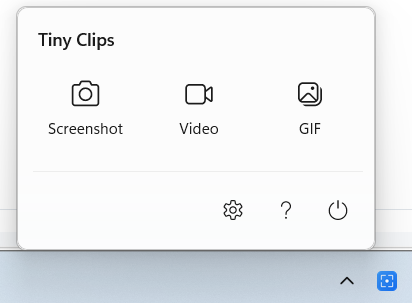
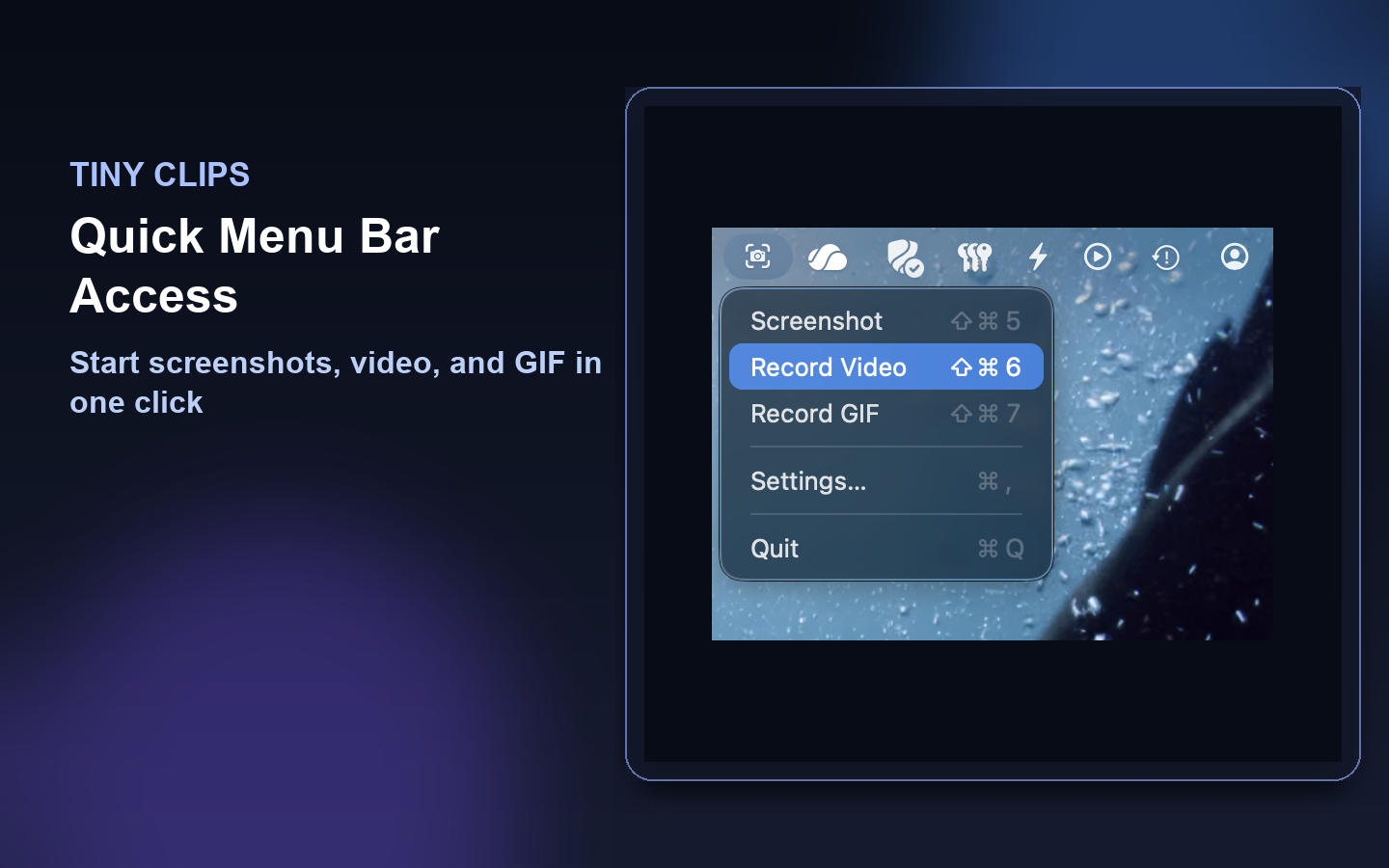
Tiny Clips lives in your Windows system tray or Mac menu bar. Grab any region, window, or screen as a PNG, MP4, or GIF — then annotate, trim, add your webcam, and send it on its way. Free, fast, and no account required.

Free, every feature included Windows 11 & macOS 15+ No account, no telemetry Other install options

Real capture flow, recorded with Tiny Clips

Get Tiny Clips in under a minute

The store is the fastest, safest way in: one click, signed by the platform, and updates arrive on their own. Terminal and direct installs stay a tap away for power users.

Recommended

Download on the Mac App Store

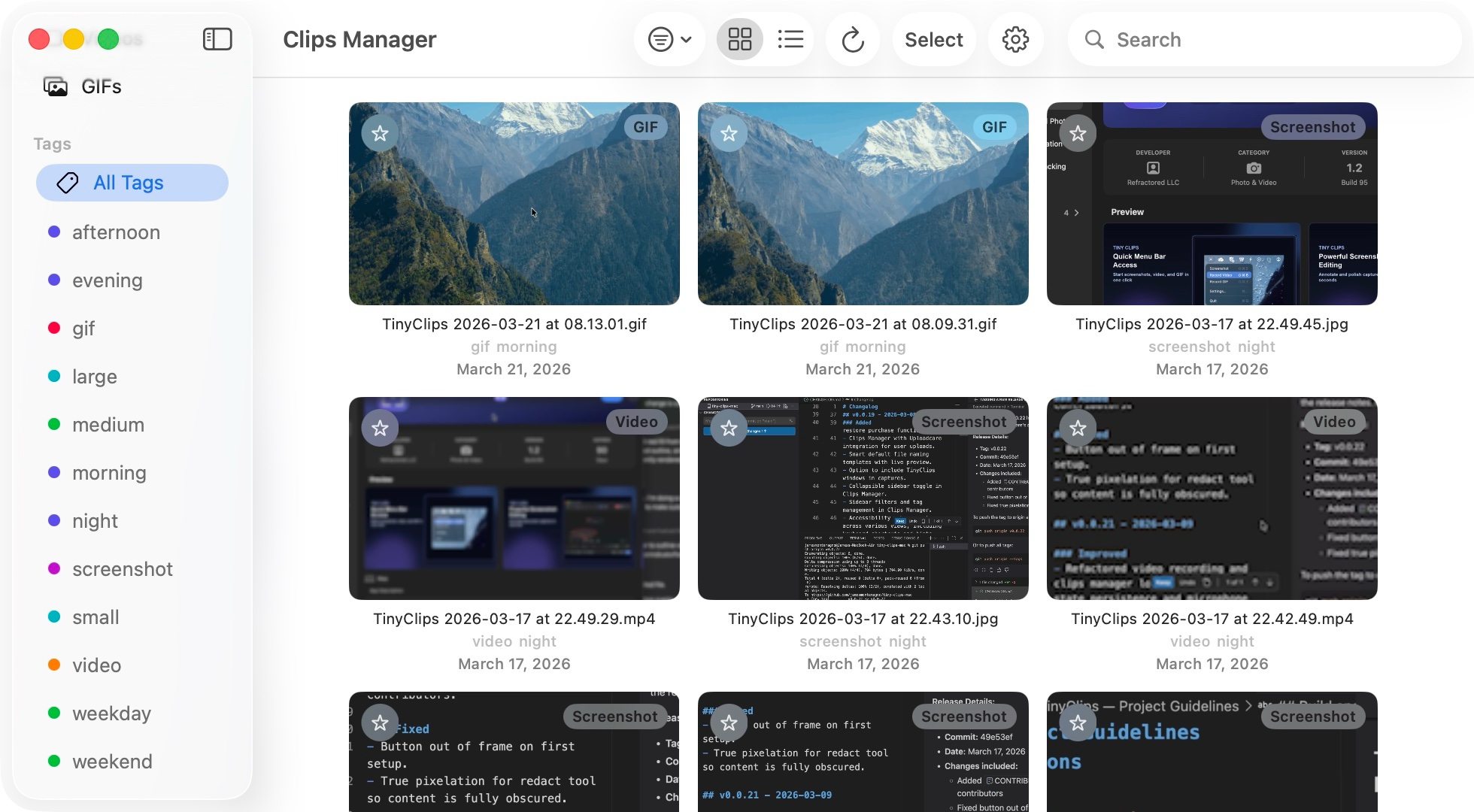
Notarized, sandboxed, and updated by the App Store. Includes Clips Manager — tags, collections, notes, favorites, and batch actions for every capture — at no cost.

  • Requires macOS 15 Sequoia or later · about 4 MB
  • Free with every feature; an optional tip supports independent development
  • macOS asks for Screen Recording permission on first capture

Homebrew

Reproducible installs from the Tiny Clips tap. The brew trust line is only needed on Homebrew versions that require it and safely no-ops elsewhere.

brew tap jamesmontemagno/tiny-clips https://github.com/jamesmontemagno/tiny-clips
brew trust jamesmontemagno/tiny-clips 2>/dev/null || true
brew install --cask tiny-clips

TestFlight & direct download

Try pre-release builds through TestFlight, or grab the latest signed, Sparkle-updating build from GitHub Releases.

Try Tiny Clips right here

This is a working simulation of the app on a tiny desktop. Click the Tiny Clips icon, pick a capture type, drag a region, then annotate a screenshot or trim a recording — exactly the loop you get on your own machine.

Everything in the demo mirrors a real Tiny Clips feature. Nothing is uploaded and nothing leaves this page.

One small app. The whole capture loop.

Tiny Clips stays out of your way until you need it, then gives screenshots, recordings, and GIFs exactly the tools they need before they leave your desktop.

Capture

Pick a target in one keystroke and Tiny Clips takes care of the rest.

  • Region, screen, or window picker — press R, S, or W
  • Scrolling capture stitches a long page into one tall image
  • Copy text from screen with built-in OCR
  • Optional countdown with a bright region outline
  • Direct hotkeys that skip the picker, all rebindable
  • Multi-monitor aware with per-display targeting

Record

Hardware-accelerated MP4 and GIF recording with the audio and overlays creators actually use.

  • H.264 MP4 at 24, 30, or 60 fps; GIFs with custom fps and width
  • Microphone + system audio with device pickers and a soft-knee limiter
  • Webcam overlay — circle, rounded, or square; any corner, any size
  • Teleprompter that scrolls your script and never shows up in the recording
  • Mouse-click highlights, pause/resume, per-recording mute and time limits
  • Optional "Captured on Tiny Clips" watermark and keep-display-awake

Polish

A real editor and real trimmers open the instant a capture finishes — no extra app required.

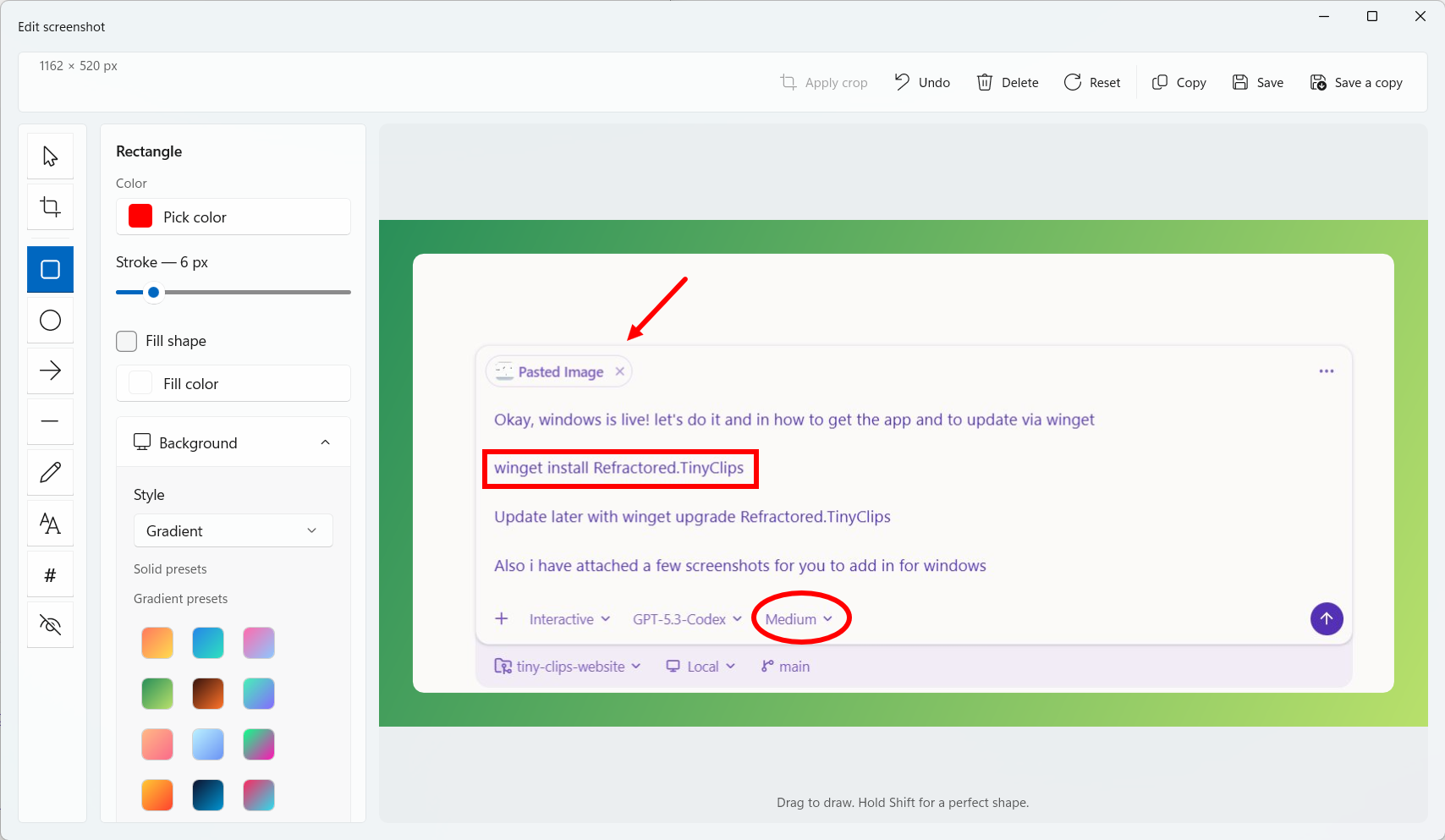
  • Annotate with rectangles, ellipses, straight or curved arrows, lines, freehand, rich text, and numbered badges
  • Redact with blur, pixelate, or solid blocks
  • Backgrounds — gradients, padding, rounded corners, and shadows
  • Export frames: Original, 1:1, 4:3, 16:9, 3:4, 9:16 with 3×3 alignment
  • Crop, resize handles, undo, and 25–400% zoom with pan
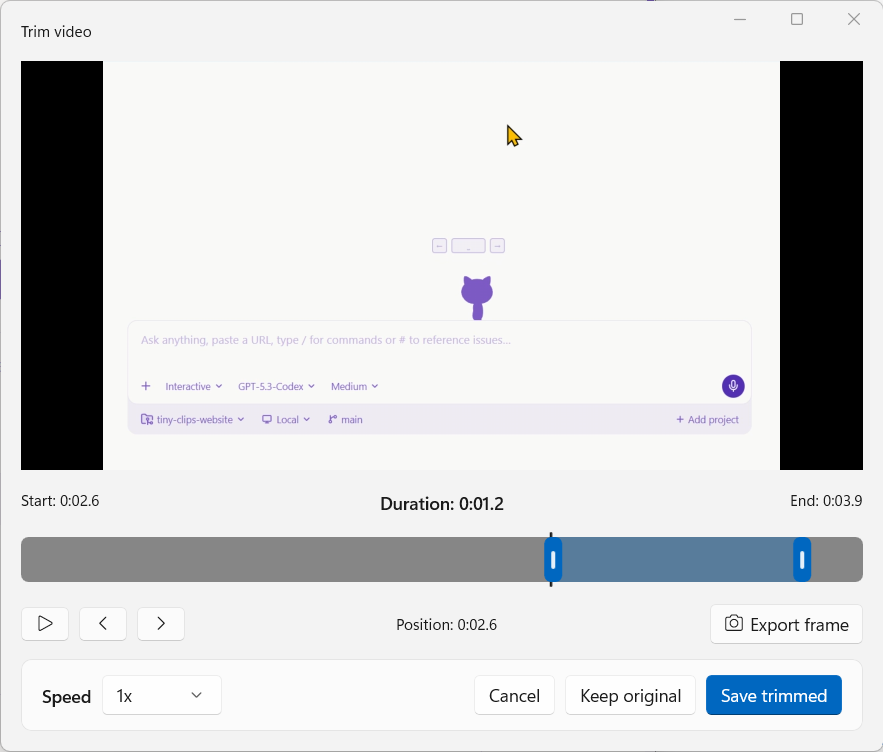
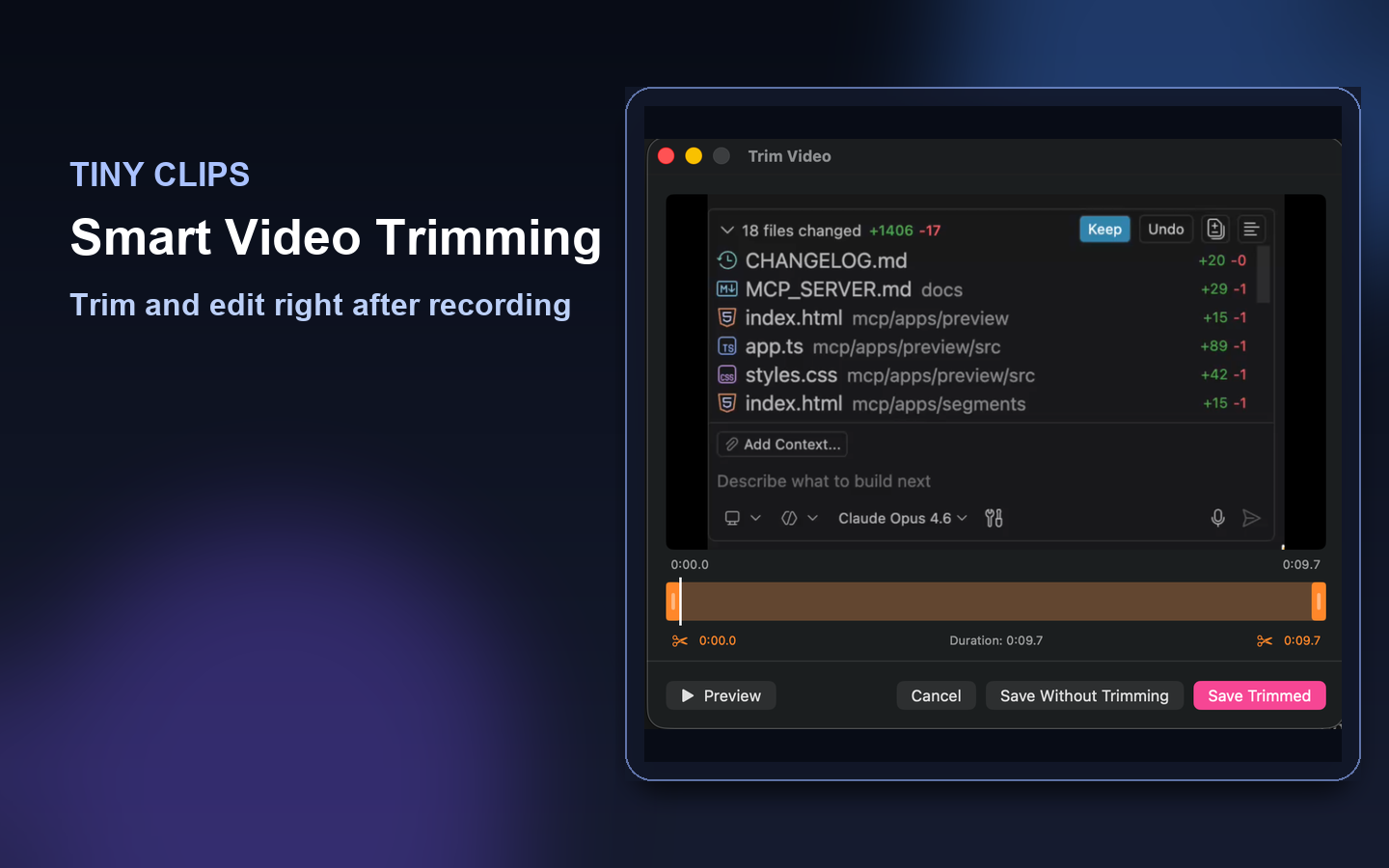
  • Trim video and GIF with range handles, speed presets, frame stepping, frame export, and remove-audio

Organize & share

Find what you captured last week without digging through folders.

  • Clips Library on Windows: browse, open, copy, reveal, and share every capture
  • Clips Manager on Mac: search, tags, notes, collections, favorites, and batch actions
  • Reopen the 10 most recent clips straight from the tray or menu bar
  • Auto-copy to clipboard and reveal in Explorer or Finder
  • Optional Uploadcare uploads with shareable links, using your own account
  • Local capture analytics: daily counts, busiest day, most active hour

Muscle memory included

Every capture is a chord away, and every chord is rebindable in Settings. Windows uses Ctrl+Shift; Mac uses Control+Option+Command so it never collides with the system screenshot keys.

Default keyboard shortcuts on Windows and macOS
Action Windows macOS
ScreenshotCtrlShift55
Record videoCtrlShift66
Record GIFCtrlShift77
Copy text (OCR)CtrlShiftTPicker → Recognize Text
Screenshot region / windowOptional, set in Settings1 / 2
Picker: region / screen / window / scrollR S W PR S W
Stop recordingCtrlShiftS.

Native on both. Not a port of either.

Tiny Clips for Windows is WinUI 3 on the Windows App SDK; Tiny Clips for Mac is Swift on ScreenCaptureKit. They share one feature roadmap and feel at home on each desktop.

Feature comparison between Tiny Clips for Windows and Tiny Clips for macOS
Feature Windows macOS
Screenshot, MP4 video, animated GIF
Region / screen / window picker
Scrolling capture
Copy text from screen (OCR)
Screenshot editor, redaction, backgrounds, export frames
Video & GIF trimmers
Microphone + system audio
Webcam overlay + Continuity Camera
Teleprompter overlay
Mouse-click highlights
Pause, resume, restart, discard
Library for your capturesClips LibraryClips Manager tags, notes, collections, batch
Uploadcare sharing links
Local capture analytics
Rebindable global hotkeys
Lives inSystem trayMenu bar
Updates viaMicrosoft Store · wingetMac App Store · Sparkle · Homebrew
RequiresWindows 11 22H2+, x64 or ARM64macOS 15 Sequoia+
Download sizeAbout 21 MBAbout 4 MB
PriceFreeFree optional tip

Watch a full capture in 90 seconds

Capture, trim, and share — the way it happens on a real desk.

Why people trust Tiny Clips

  • Private by design

    Captures are saved to folders you choose. No account, no telemetry, no cloud unless you connect your own Uploadcare.

  • Genuinely lightweight

    Around 4 MB on Mac and 21 MB on Windows. Starts in the tray or menu bar and stays idle until you call it.

  • Open source

    MIT licensed on GitHub. Read the code, file a bug straight from the app, or build it yourself.

  • Accessible

    Keyboard-first flows, Narrator and VoiceOver announcements, and a documented accessibility gate before every Windows release.

Questions, answered

Anything else? Open an issue on GitHub or use File a Bug inside the app.

How do I install Tiny Clips on Windows?

Open the Microsoft Store listing and click Install. The Store keeps Tiny Clips updated for you. Prefer a terminal? Run winget install Refractored.TinyClips. Signed MSIX packages are also on GitHub Releases.

How do I install Tiny Clips on macOS?

Use the Mac App Store for automatic updates and Clips Manager. Homebrew users can tap jamesmontemagno/tiny-clips and brew install --cask tiny-clips. TestFlight and direct GitHub downloads are available too.

Is Tiny Clips really free?

Yes. Every feature is included on both platforms with no account, subscription, or paid unlock. On macOS you can optionally leave a tip; supporters get a small badge in Settings and nothing else changes.

Does Tiny Clips collect any data?

No. There is no telemetry or analytics service. Capture statistics in Settings → Analytics are stored only on your device. Uploads happen only if you connect your own Uploadcare account. Read the privacy policy.

What permissions does it need?

Windows and macOS prompt for screen capture the first time you record. Microphone and camera are requested only when you turn those options on for a recording, and you can revoke them any time in system settings.

Which formats and quality settings are available?

Screenshots save as PNG (JPEG and scale options on Windows). Video is hardware-accelerated H.264 MP4 at 24, 30, or 60 fps with optional microphone and system audio. GIFs support 5–30 fps and a configurable maximum width.

Which versions of Windows and macOS are supported?

Windows 11 22H2 or later on x64 and ARM64, and macOS 15 Sequoia or later. Both builds are native: WinUI 3 on Windows and Swift with ScreenCaptureKit on Mac.

Ready when your next clip is.

Free on both stores. Installs in seconds, then waits quietly in your tray or menu bar.